Building useful websites
Text too faint? Check and fix color contrast
Measure the actual text and background, choose the correct size threshold, save a stronger color pair and recheck the published page.
Check one actual page
If a caption, paragraph or form hint looks faint, check the text against the background immediately behind it. Start with the published page: an editor preview may use different colors. For ordinary text, aim for a WCAG 2.2 contrast ratio of at least 4.5:1, with some room above the minimum.
- In Chrome, right-click the text and choose Inspect. In Elements, select the element containing the words. In Styles, find its color declaration and click the small color square.
- Expand Contrast ratio if available. Check which background the tool is using. Chrome documents this feature for color against background-color; a result is not a check of every image or layer behind the text.
- Use a WCAG 2 contrast-ratio result, such as 4.5:1. An APCA score uses a different scale and cannot be compared with this threshold. If the tool is in APCA mode, switch it to WCAG 2; exact controls vary by browser version.
- If your editor shows text and background hex values, you can enter that pair into a WCAG 2 contrast checker instead. This shortcut is for opaque colors on a known solid background.
- Darken text on a light background, or lighten text on a dark background, then measure again. If the publishing service offers no color control, send its maintainer the page URL, affected text and measured pair.
Choose the right minimum
WCAG 2.2 criterion 1.4.3 uses 4.5:1 for ordinary text and 3:1 for large text. For common fonts, large means at least 18 pt regular or 14 pt bold: 24 CSS px regular or 18⅔ CSS px bold. An 18 px bold heading is still below the size boundary; an H1 or H2 tag alone does not make text large.
Thin or unusual fonts can remain difficult to read even when the numbers pass. Increase contrast or use stronger letter strokes. The criterion has specific exceptions, including inactive controls, genuinely decorative text and logotypes; a useful caption or form instruction is not exempt merely because it is secondary.
A repair you can measure
Suppose a site uses opaque gray text on solid white (#FFFFFF). These values come from the WCAG sRGB relative-luminance formula. Displayed ratios are approximate; the normal-text verdict uses the unrounded result.
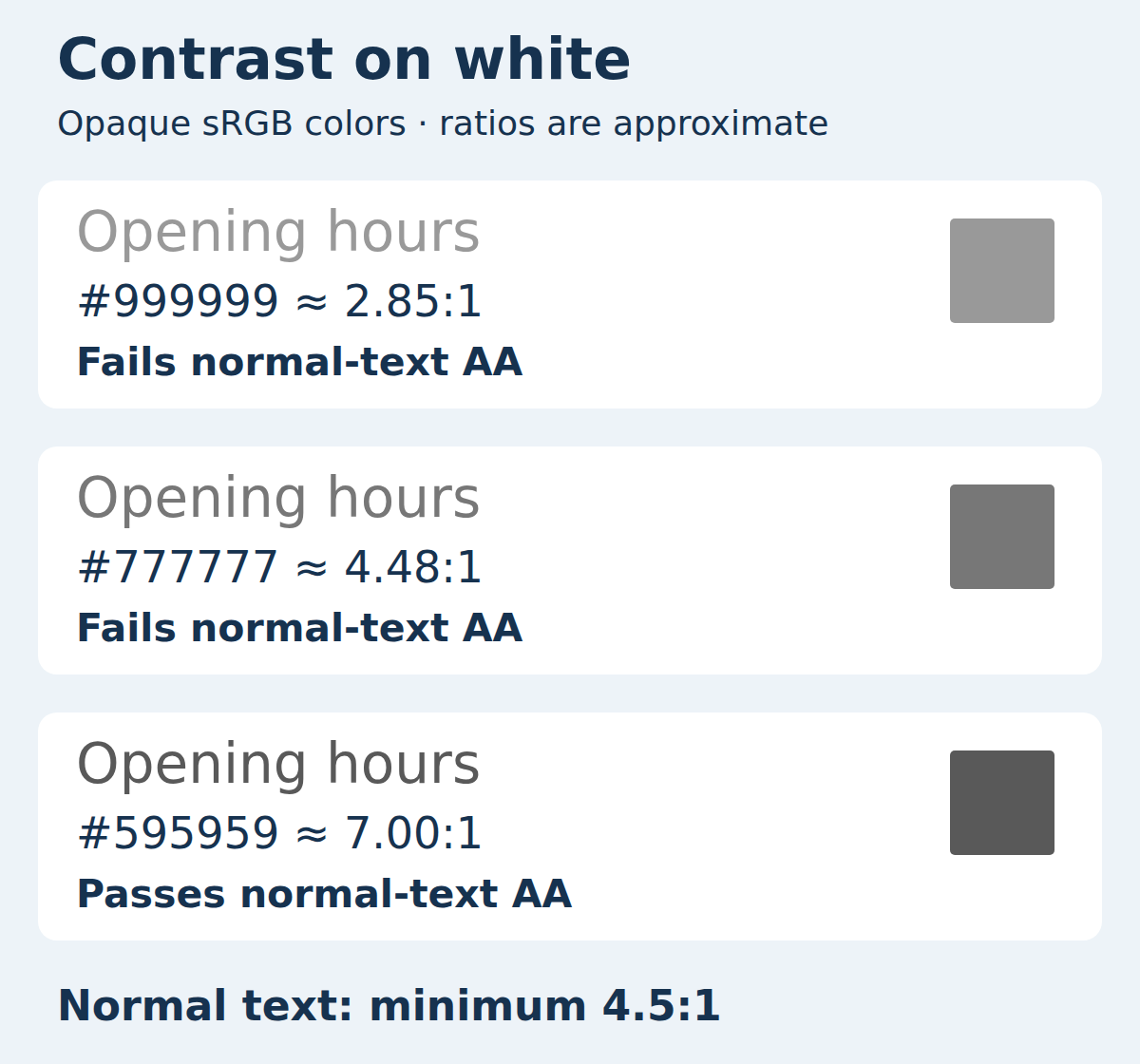
- #999999 → about 2.85:1. Below both the ordinary-text and large-text minimums.
- #777777 → about 4.48:1. Fails the ordinary-text minimum, even though it is close; it exceeds 3:1 for qualifying large text.
- #767676 → about 4.54:1. Passes the ordinary-text minimum, with little room above it.
- #595959 → about 7.00:1. Gives this white-background example a larger margin. Recalculate if the background changes.
4.49 does not become a pass
Do not round a failing value up to the required threshold. For example, #767777 on white is about 4.49157:1: it fails 4.5:1. A more deceptive pair is #77767C on white, about 4.499863:1. A two-decimal display can show 4.50, but the pair still fails.
Near the boundary, check the tool’s WCAG pass/fail result and more precise value, or choose a stronger contrast pair. A rounded label alone is insufficient evidence.
Transparency changes the pair
A transparent background is not automatically white: find the visible background underneath it. Semi-transparent text also mixes with that background. In ordinary sRGB compositing, black at 40% opacity over opaque white becomes #999999, about 2.85:1. Checking opaque black against white would incorrectly suggest 21:1 for that example.
Opacity on a parent, blend modes and filters can change the result too. For a photo or gradient, contrast varies with the area behind each letter. One sampled point cannot establish the minimum across the whole text. An opaque panel behind the text is often an easier repair to verify; check every layout and theme where it appears.
For normal HTML text, use the browser’s foreground and background colors rather than sampling a pale, anti-aliased edge of a letter in a screenshot. This guide’s numeric examples cover sRGB colors, not a general test for HDR or wide-gamut images.
Check labels and other states separately
Ordinary button labels still need the text ratio of 4.5:1. Criterion 1.4.11 separately uses 3:1 against adjacent colors for visual information needed to identify controls and their states, and for meaningful parts of graphics, with its stated exceptions. It does not require every button to have a border.
Check placeholder text, errors, hover text and keyboard-focus text as well as the initial view. A passing body paragraph does not establish that the whole page is accessible.
Publish the actual fix
- Save the color change in the site’s theme, editor or stylesheet. Treat a DevTools adjustment as a preview unless you have deliberately configured persistent editing.
- Reload the published page and measure the affected text again. Check the mobile layout, supported light and dark themes, and the relevant control states.
- Record the page URL, text/background values, text size and weight, unrounded result and state. For the example: #595959 on #FFFFFF, 16 px regular, about 7.004729:1, ordinary-text contrast passes.
- Read the result as a reader would. Contrast is one part of readability: keep useful wording, comfortable sizing, clear links and visible keyboard focus.