Building useful websites
PNG to JPEG gives a black or white background? Choose the color
If you need JPEG, choose the background before exporting. Keep the transparent original: a black or white rectangle can be a viewer backdrop, exposed hidden colors, or pixels already flattened into the image.
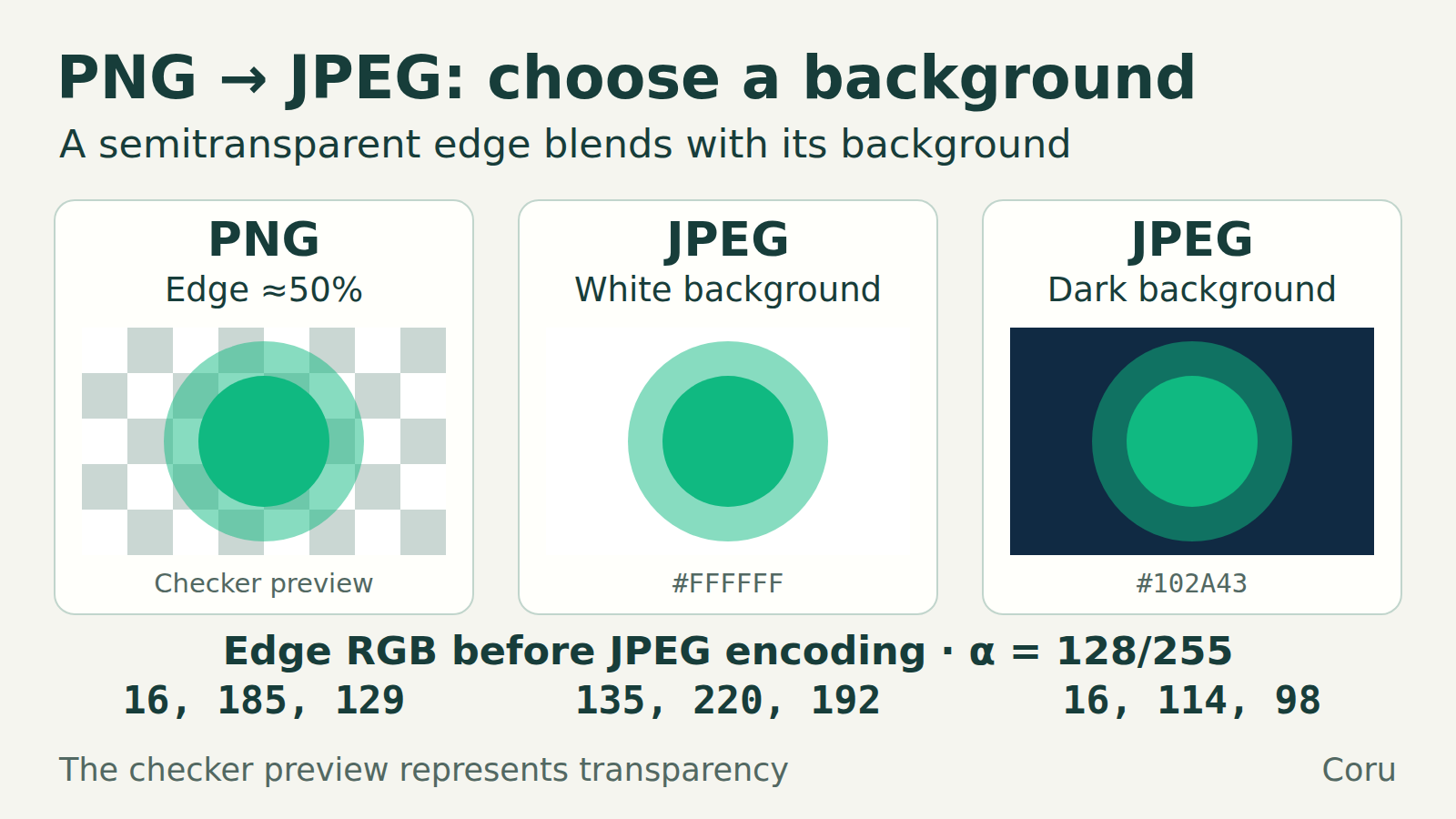
Choose whether you need transparency or a fixed background
A normal JPEG (.jpg or .jpeg) cannot keep a transparent background. If an upload requires JPEG, choose a solid background color and combine the image with that background before exporting. If transparency is required, keep a format that supports it, such as PNG, and check that the destination accepts it. Merely changing the filename extension does not convert the image.
White is useful on a white page, but it is not automatically the right choice: a white logo may disappear on it. A JPEG exported on white will still have that white rectangle on a dark page.
- Need the same cutout on several background colors? Keep the transparent source and use a transparency-capable output.
- Need JPEG for one fixed design? Set its background explicitly, including behind partially transparent edges.
- Already have a black or white rectangle in the source? First find out whether those are real pixels or just the viewer’s backdrop.
Check the source before converting it again
Open the original PNG in an editor that displays transparency. Put a temporary, brightly colored layer underneath the image. If that color shows through the supposedly empty area, transparency is present there. If an opaque black or white rectangle stays in place, it is part of the visible image in this test. A checkerboard visible in a screenshot can itself be baked into the pixels; its appearance alone is not proof of transparency.
Check the actual file you intend to upload, not only a thumbnail. Some viewers use a black or white backdrop for transparent areas. When the problem appears only after upload, compare the delivered image with your local export: the destination may have created another version.
In an image editor: put the chosen color underneath
Work on a copy and keep the original transparent or layered file. These are editing operations, not identical menu names in every application. The desktop workflow below is a practical checklist; our measured test later uses Pillow.
- Create a solid-color layer that covers the entire canvas, using the intended background color.
- Place it underneath every visible part of the image. Keep the original artwork and its transparency above it.
- Inspect the composite, especially pale text, soft shadows and antialiased edges. Confirm the subject remains visible against that color.
- Export a new JPEG. If the editor offers a background or matte setting instead of layers, select the same color and inspect its preview.
- Reopen the exported JPEG and check it at the size where it will be used. Save your editable source separately so you can choose another background later.
Why dropping alpha is different from choosing a background
A transparent pixel can still contain red, green and blue values. Alpha describes its opacity. Removing alpha without compositing can expose those stored colors; they need not be black. Converters also differ in whether they choose a background, discard alpha, or reject the conversion.
In our Pillow test, RGBA pixels (16, 185, 129, 0) and (0, 0, 0, 0) were both completely transparent. A direct convert("RGB") made them teal and black respectively. That conversion did not mean “put this picture on white”.
PNG transparency does not always appear as a separate A band when first opened. An indexed PNG can use a palette plus transparency data. The example below first converts to RGBA so its compositing step also handles the tested palette transparency.
Measured example: the same translucent teal on two backgrounds
Coru created original PNG strips with fully transparent, partly transparent and opaque swatches. For the partly transparent swatch, RGB was (16, 185, 129), with alpha 128 out of 255: approximately 50% opacity. Using Pillow 13.0.0, the composite before JPEG encoding was (135, 220, 192) on white, and (16, 114, 98) on dark blue #102A43.
These are the measured results of mixing stored 8-bit channel values in this example, not a prediction for every color-managed editor. The opaque swatch kept its RGB values before encoding; the fully transparent swatches became the selected background.
JPEG is lossy. After saving with the code below and reopening, the center of the partly transparent swatch measured (135, 220, 191) on white and (16, 114, 99) on dark blue. This one-value difference is why exact pre-encoding samples should not be advertised as exact JPEG pixels. Equivalent RGBA and indexed-palette fixtures produced identical JPEG files in this test.
Optional: reproduce the conversion locally with Python
For the following terminal example, use a fresh working folder on Linux or macOS with Python 3.11 or newer installed. Create an isolated environment and install the tested Pillow version. Installation downloads software; the conversion itself reads local files and makes no image upload. Save the next Python block as flatten_png.py and place a working copy of your source beside it as input.png.
This example is for single-frame PNG graphics, at most 20 million pixels, with 8-bit-or-lower samples. It refuses 16-bit PNG input, multiple frames and an existing output path. Use an upright source whose RGB values already have the intended interpretation; this is not a color-space conversion or metadata-preservation workflow.
Set up the tested Python environment
bash
python3 -m venv .venv
.venv/bin/python -m pip install "Pillow==13.0.0"
Run these lines in a fresh working folder. The example was checked with Python 3.12.3 and Pillow 13.0.0 on Linux.
Save as flatten_png.py
python
import argparse
from pathlib import Path
from PIL import Image, ImageColor

parser = argparse.ArgumentParser()
parser.add_argument("source", type=Path)
parser.add_argument("output", type=Path)
parser.add_argument("background", help='Solid RGB color, e.g. "#FFFFFF"')
args = parser.parse_args()
background = ImageColor.getrgb(args.background)
if len(background) != 3:
    parser.error("Choose a solid RGB background, without alpha.")

with args.source.open("rb") as stream:
    header = stream.read(29)
    if header[:8] != b"\x89PNG\r\n\x1a\n" or len(header) < 29:
        parser.error("Input must be a PNG file.")
    if header[24] == 16:
        parser.error("This example does not process 16-bit PNGs.")
    stream.seek(0)
    with Image.open(stream) as source:
        if source.format != "PNG" or getattr(source, "n_frames", 1) != 1:
            parser.error("Use a single-frame PNG.")
        if source.width * source.height > 20_000_000:
            parser.error("This example is limited to 20 million pixels.")
        if source.mode not in {"1", "L", "LA", "P", "RGB", "RGBA"}:
            parser.error("Unsupported PNG mode for this example.")
        rgba = source.convert("RGBA")

matte = Image.new("RGBA", rgba.size, (*background, 255))
flat = Image.alpha_composite(matte, rgba).convert("RGB")
with args.output.open("xb") as output:
    flat.save(output, format="JPEG", quality=92, subsampling=0)
print(f"Saved {args.output}: {flat.width} x {flat.height}, opaque RGB")
The background is opaque. Alpha is composited before RGB conversion and JPEG encoding. Opening the new output with xb refuses to replace an existing file.
Make separate white and dark-background JPEGs
bash
.venv/bin/python flatten_png.py input.png white.jpg "#FFFFFF"
.venv/bin/python flatten_png.py input.png dark.jpg "#102A43"
The quotes keep the # color value intact in the shell. Each run starts from input.png; use new output names when running again.
What the script does, and what still needs inspection
The source is read without modification. convert("RGBA") supplies the foreground; Image.new creates a solid background of the same size; alpha_composite places the foreground over it. Only the resulting opaque image is converted to RGB and saved. The script does not resize or crop the picture.
The sample uses quality=92 and subsampling=0. Those are the settings used for our test, not a promise of a particular file size or perfect edges. Inspect the reopened JPEG; text and line art can still show compression artifacts. If saving fails, a partial new output file may remain. Remove that failed output or choose a new filename before trying again.
ICC profiles, EXIF orientation and other metadata are not copied or interpreted by this script. It does not perform ICC color conversion or linear-light compositing. For color-critical work, camera orientation, HDR, animation or a required metadata workflow, use a suitable editor/export pipeline and verify those properties separately. Do not treat the example as a universal image converter.
Re-saving a flattened JPEG as PNG does not restore transparency
Once the background has been combined into the pixels and alpha discarded, a later PNG save does not know which pixels used to be transparent. A white pixel might have been the subject itself, the background, or a mixture at an edge.
Return to the transparent or layered original to choose a different background. If that source no longer exists, background removal requires a new selection or mask; simply deleting every white or black pixel can damage the subject and its soft edges.
Before uploading the result
- Original retained: can you make a fresh export without editing an earlier JPEG?
- Background intentional: does it match the actual destination and leave the subject readable?
- Edges checked: inspect hair, shadows, thin lines and small lettering at the intended display size.
- Saved file reopened: confirm its format, dimensions and appearance after compression.
- Destination checked: inspect the uploaded result too, including a dark theme if one is relevant.
How we tested it
On 21 October 2026 we ran the published converter on Linux with Python 3.12.3 and Pillow 13.0.0, with network access disabled during the lab. The 38 checks covered RGBA, palette alpha values, a transparent palette index, RGB with and without a transparent color key, grayscale with alpha, output dimensions, JPEG decoding, rejected inputs and unchanged source-file hashes.
The fixtures were synthetic. We measured channel values and file behavior, not photographic quality, desktop-editor behavior, reader demand or performance on arbitrary files. The practical stopping point is an export whose background and edges work in the destination where readers will see it.