Building useful websites
Resize an image to exact dimensions without stretching: crop or pad?
When the source and target have different aspect ratios, choose what matters: the whole picture, an exact canvas, or filling every edge. Our measured example shows what each choice preserves and loses.
Choose what the final picture must keep
A 1600 × 900 picture is a wide rectangle. A 1200 × 1200 upload slot is square. Ordinary proportional resizing cannot make the whole rectangle fill that square: you must crop some content, add space around it, or accept different final dimensions. Stretching width and height independently changes the shapes in the picture.
- Need an exact square and can lose the edges? Crop, checking the subject before saving.
- Need the whole picture in an exact square? Fit it inside a square canvas and add padding.
- Only a maximum width and height are required? Resize proportionally; the output need not be square.
If you use an image editor
Keep the original and work on a copy. For a square crop, select a 1:1 crop ratio, move the crop to retain the important subject, apply it, then resize the result to 1200 × 1200 pixels with proportions locked. For padding, lock proportions and resize the whole 1600 × 900 image to 1200 × 675; then expand the canvas to 1200 × 1200, centering the picture on the chosen background.
Image size changes the picture’s pixels. Canvas size changes the area around them and can also cut pixels away when made smaller. Check the editor’s preview before applying either operation. These are operation names, not a claim that every editor has identical menus.
A measured example: one circle, two edge markers
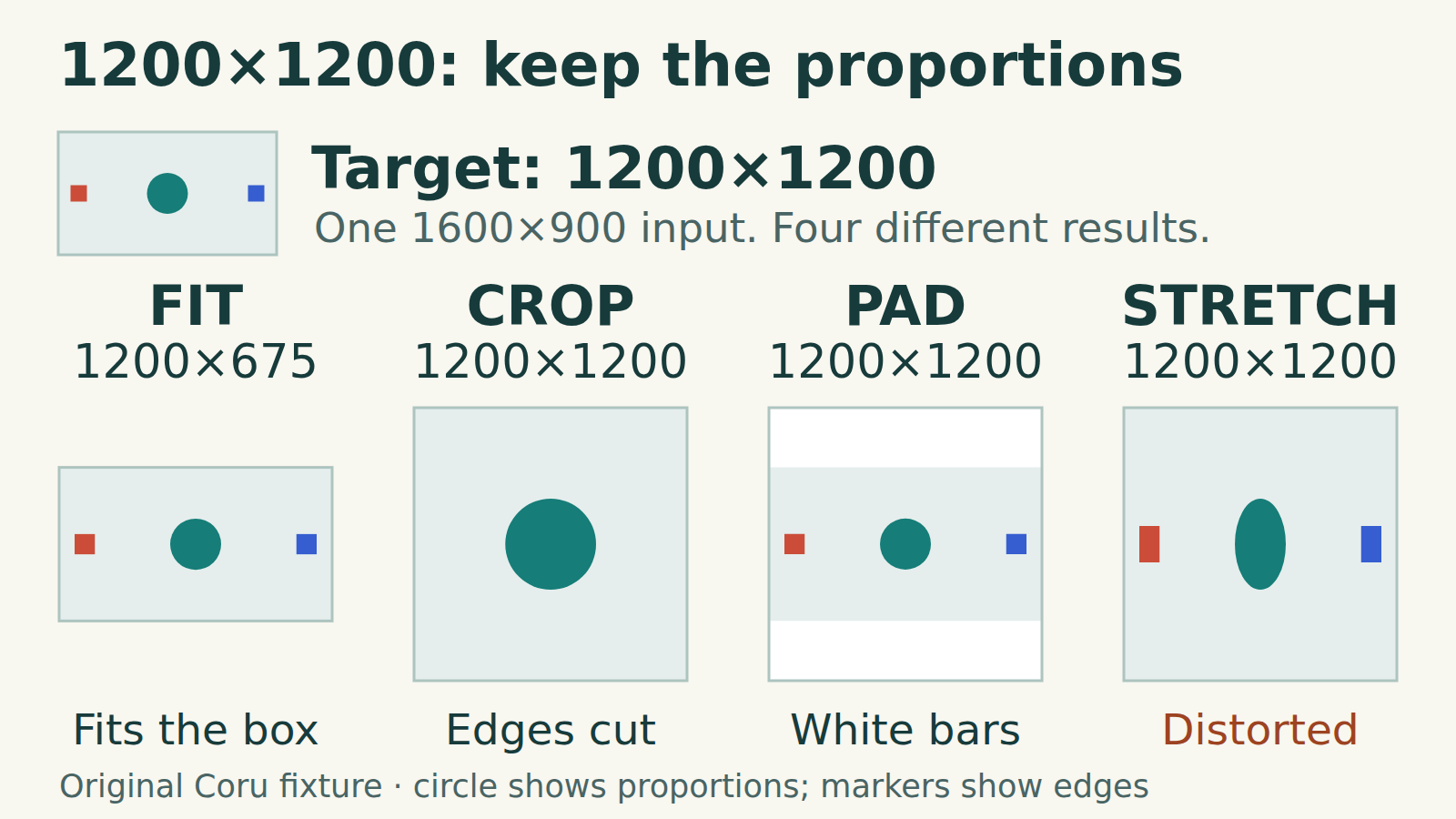
Coru created a 1600 × 900 test image with a circle and markers near its left and right edges. We exported independent versions from that original, rather than repeatedly resizing an earlier result.
- Fit: 1200 × 675. The circle keeps its proportions and both edge markers remain. This file is not a square.
- Center crop: 1200 × 1200. The circle keeps its proportions, but the two edge markers disappear. Correct dimensions do not prove the important content survived.
- White padding: 1200 × 1200. The 1200 × 675 picture sits inside it; the circle and both markers remain. The unused height is 525 pixels in total.
- Forced stretching: 1200 × 1200. Both markers remain, but the circle becomes a tall ellipse.
Reproduce it locally with ImageMagick 7
Install ImageMagick from its official download page, then check magick -version. The following single-line commands use a working file named input.png in the current folder. Use new output names and keep your original: an existing output can be overwritten. The examples cover one upright, opaque PNG, not an animation or a camera file with orientation metadata.
The commands use quoted size arguments so the shell passes characters such as ^ and > to ImageMagick. We tested them in Bash on Linux. After installation, these local file operations do not need an image upload.
Fit within the bounds
bash
magick "input.png" -resize "1200x1200" "fit.png"Expected here: 1200 × 675. The plain size argument gives a bounding box, not a promise of both exact dimensions.
Fill the square, then cut off the excess
bash
magick "input.png" -resize "1200x1200^" -gravity center -extent 1200x1200 "crop.png"Expected here: 1200 × 1200. The ^ resize fills the target area; the following centered extent cuts it to the required canvas.
Why the crop can enlarge the source
To cover the square, the 900-pixel height must reach 1200: the scale factor is 1200 ÷ 900, or about 1.333. In our run the intermediate image was 2133 × 1200, rounded to whole pixels. The final crop discarded 933 horizontal pixels in total. A source wider than the target can still need enlargement because its other dimension is too small.
A centered crop does not recognize a face, a product label, or the part you wanted to keep. If it cuts something important, reposition the crop in your editor, use a different source, or choose padding. Upscaling does not recover detail missing from the original.
Keep the whole picture and add a white canvas
bash
magick "input.png" -resize "1200x1200" -background white -gravity center -extent 1200x1200 "pad.png"Expected here: 1200 × 1200. The picture is first fitted to 1200 × 675, then centered on white. The 525 extra rows cannot split equally into whole pixels; the two bands differ by one row.
Do not enlarge a small source just to fill the canvas
For a smaller picture, the > modifier lets resize shrink oversized inputs while leaving already-small ones at their current pixel dimensions. Canvas expansion still makes the final file square. In our separate 600 × 338 test, the picture stayed 600 × 338 inside a 1200 × 1200 canvas; there were margins on all four sides.
Pad a smaller input without enlarging it
bash
magick "small.png" -resize "1200x1200>" -background white -gravity center -extent 1200x1200 "small-pad.png"Use this when the subject must keep its existing pixel dimensions if it already fits. It does not make a small subject fill the square.
Avoid forcing two unrelated dimensions
Adding ! to the resize size, as in 1200x1200!, forces both dimensions even when that changes the aspect ratio. In our example the width scale was 0.75 and the height scale about 1.333. The circle became about 1.78 times as tall as it was wide. Use proportional resizing for photos, logos and screenshots whose shapes must remain accurate.
Check the saved dimensions
bash
magick identify "fit.png" "crop.png" "pad.png"The output reports each file’s geometry. For this fixture, read 1200x675 for fit.png and 1200x1200 for crop.png and pad.png. Then inspect the actual pictures.
A short check before uploading
- Open the saved file and check a circle, face, or logo for distortion.
- Compare all four edges and any text with the original. Do not approve a crop from dimensions alone.
- Confirm the required pixel dimensions, background and file format. Pixel dimensions alone do not determine file size in bytes.
- Upload the chosen output and inspect the actual destination. If its layout crops the picture again, changing the export alone may not solve the problem.
How we checked this example
On 21 October 2026 we ran ImageMagick 7.1.2-34 on Linux against the original opaque PNG fixtures, with network access disabled. We checked dimensions, circle bounds, edge markers, padding pixels and unchanged source files; a second independent run checked the published commands. Integer rounding can leave a one-pixel difference in measured circle bounds or opposite margins.
This is a geometry and content-retention test. We did not assess photographic resampling quality, color profiles, transparency, animation or camera orientation metadata. Recheck those properties when they matter to your own file.