Building useful websites
Photo sideways after upload? Fix EXIF orientation once
Keep the original, apply its orientation instruction to the pixels once, and check the exported file and uploaded thumbnail. Missing or wrong tags still need a visual decision.
Start with a fresh export of the original
If a photo looks upright on your phone but sideways after uploading, keep the original and make a separate export. One possible cause is EXIF orientation: the file stores pixels in one direction and a tag tells a viewer how to turn them. A thumbnail generator or conversion step may ignore or remove that instruction. A sideways upload alone does not prove this is the cause.
Without writing code, use an image editor that can export a new image with the displayed orientation applied to the pixels. The exact controls vary by application; the steps below describe the result to check, not a tested sequence of menu clicks.
- Open the original in the editor and check a meaningful reference: readable text, a horizon, or which side of the subject should be on the left.
- If it is already upright, do not add another quarter turn just because another preview was sideways. If it is wrong, correct its rotation or reflection in the editor.
- Export a new file under a new name. Where supported, choose an export that applies orientation to the pixels and removes or resets the orientation instruction. PNG is useful for an intermediate check if the destination accepts it.
- Reopen the exported file, then upload that exact file and inspect the delivered full image and thumbnail. Keep the original until both are right.
Two places can describe the same orientation
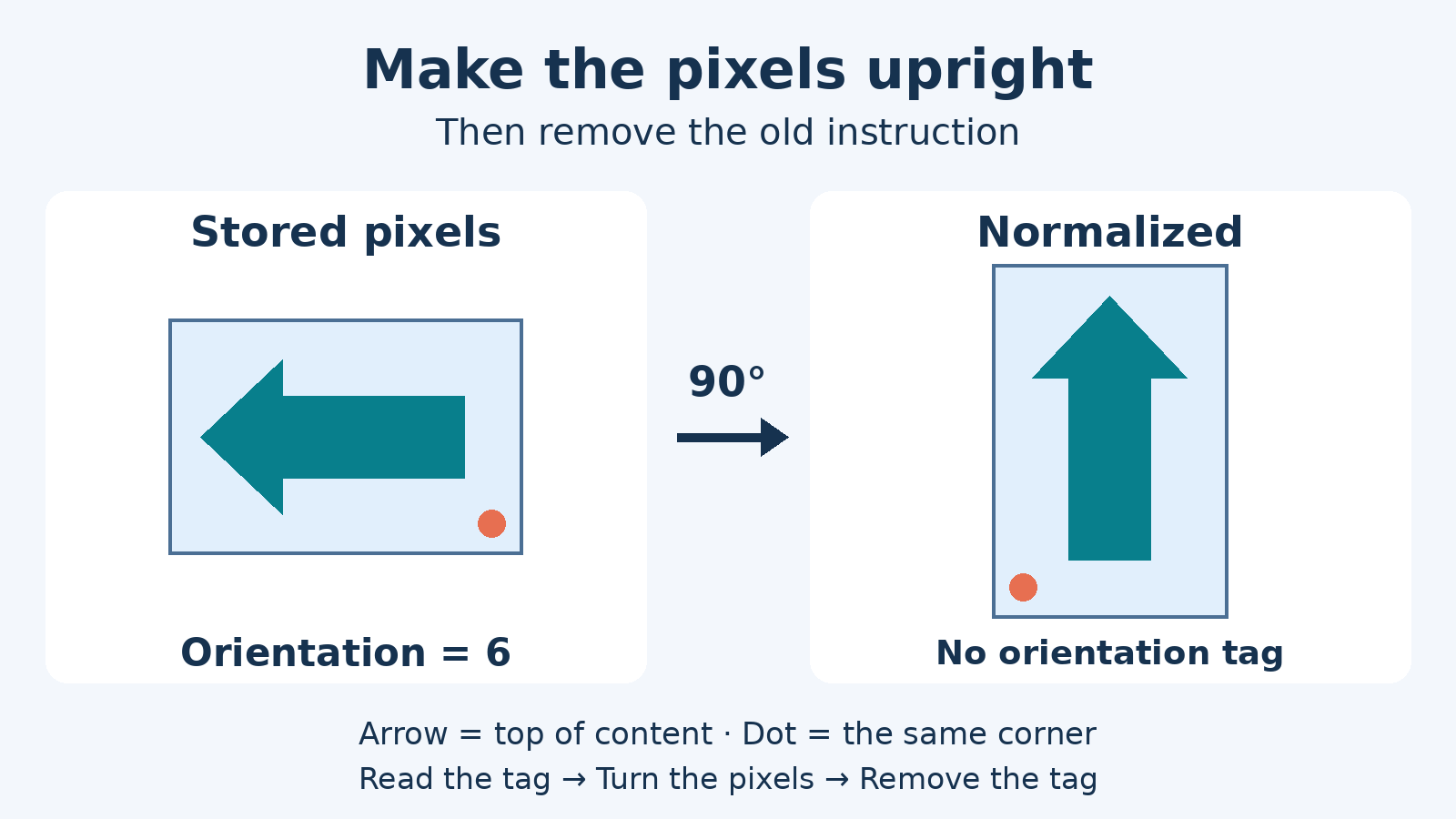
Stored width and height describe the pixel array. EXIF Orientation describes how that array should be displayed. For example, Orientation 6 asks for a quarter turn clockwise: a stored 96 × 64 image becomes 64 × 96 when that instruction is applied. The total pixel count is unchanged.
Normalizing orientation means applying the instruction to the pixels once and then removing or resetting the old instruction. Removing the tag first loses the information needed for that correction; rotating pixels and keeping the old tag can make a later viewer turn them again. This is different from cropping, stretching, or changing the background.
Check reflection as well as rotation
The eight EXIF orientation values include mirrored arrangements. Values 2, 4, 5 and 7 involve a reflection; handling only 90°, 180° and 270° rotations misses them. In a document or product photograph, check lettering and the left/right positions of distinctive features as well as the top edge.
When no orientation instruction is found, or Orientation is 1, no correction is applied. It does not prove that the subject is upright. A valid but wrong tag can also produce a wrong result. Software following the tag cannot infer the photographer’s intention; use the original scene or readable content to choose a manual correction.
Why a CSS rotation is not a file repair
MDN documents image-orientation: from-image as the initial CSS value: the browser can use the image’s orientation information when displaying it. A transform such as rotate(90deg) is applied after that orientation step. Adding it blindly can turn an image that the browser already displays correctly.
CSS changes the page’s presentation; it does not rewrite the downloadable image or a server-generated thumbnail. If a processing step has discarded the tag without correcting the pixels, from-image has no missing instruction to recover. Compare the local export with the actual image delivered by the site before changing page styles.
Optional: normalize a JPEG locally with Python
The following example creates a separate PNG with its orientation applied to the pixels. Use a fresh working folder on Linux or macOS with Python 3.11 or newer. Installation downloads Pillow; the conversion itself reads local files and does not upload the photo. Save the Python block as normalize_orientation.py and put a working copy of the JPEG beside it as input.jpg.
The deliberately limited input is a single RGB or grayscale JPEG, no more than 20 million pixels. CMYK, other formats, multiple frames and unrecognized orientation values are refused. It is not an HEIC, RAW, HDR or multipicture converter. A filename ending in .jpg is not enough: the decoded format is checked. Pillow can also obtain Orientation from XMP; an absent EXIF block alone does not mean no orientation will be found.
Prepare the tested environment
bash
python3 -m venv .venv
.venv/bin/python -m pip install "Pillow==13.0.0"
Checked on Linux with Python 3.12.3 and Pillow 13.0.0. Run in a fresh working folder.
Save as normalize_orientation.py
python
import sys
from pathlib import Path

from PIL import Image, ImageOps


def normalize(source, destination):
    destination = Path(destination)
    if destination.suffix.lower() != ".png":
        raise ValueError("Choose a new output filename ending in .png")

    with Image.open(source) as image:
        if image.format != "JPEG" or image.mode not in ("RGB", "L"):
            raise ValueError("Use a single RGB or grayscale JPEG")
        if getattr(image, "n_frames", 1) != 1:
            raise ValueError("Multiple frames are outside this example")
        if image.width * image.height > 20_000_000:
            raise ValueError("Image exceeds this example's 20 megapixel limit")
        orientation = image.getexif().get(274, 1)
        if not isinstance(orientation, int) or orientation not in range(1, 9):
            raise ValueError("Unrecognized orientation; inspect the source manually")

        image.load()
        icc = image.info.get("icc_profile")
        upright = ImageOps.exif_transpose(image)
        clean = Image.new(upright.mode, upright.size)
        clean.paste(upright)

    options = {"icc_profile": icc} if icc else {}
    with destination.open("xb") as output:
        clean.save(output, format="PNG", **options)
    print(f"Saved {destination}: {clean.width} x {clean.height} pixels")


if __name__ == "__main__":
    if len(sys.argv) != 3:
        raise SystemExit("Usage: python normalize_orientation.py input.jpg upright.png")
    normalize(sys.argv[1], sys.argv[2])
Apply orientation before copying pixels into a clean image. Only the ICC profile is copied as metadata; xb refuses an existing output path.
Create a new upright PNG
bash
.venv/bin/python normalize_orientation.py input.jpg upright.pngUse a new output filename on each run. The original JPEG is read without modification.
What is preserved, and what is deliberately omitted
The script does not resize or crop. A quarter turn exchanges width and height. PNG stores the transformed decoded JPEG pixels without another lossy JPEG encoding step; it cannot restore detail already lost in the original JPEG. The PNG may be much larger, and a site may not accept it or may recompress it later.
A fresh image receives the transformed pixels, so the output omits EXIF, XMP and the old orientation instruction, including an Orientation value of 1. Capture time, camera fields, embedded thumbnails and other source metadata are not carried over. Keep the original if you need that information.
An embedded ICC profile is copied unchanged. This preserves the supplied profile; it does not validate it or convert colors to sRGB. Metadata removal here is not a general anonymization guarantee: an ICC profile can contain information, and the visible picture itself can identify people or places. For a color-critical or metadata-preserving workflow, use a suitable editor and verify those requirements separately.
An existing output, including the input path or a symlink, is refused. If writing fails after creating a new file, a partial output can remain; remove that failed result or choose a new name before retrying.
If the upload is still sideways
- Compare the saved export with the image the site actually serves. The thumbnail and full image may come from different processing steps.
- Check that the upload used the new file, and that you are looking at its new URL rather than an older cached thumbnail.
- If only the page presentation is wrong, inspect the page’s image-orientation and transform rules. If the served file itself is wrong, investigate the image conversion or thumbnail step.
- If the normalized file is already wrong locally, check the original tag and your intended top/left reference. Repeating the same automatic normalization cannot fix a wrong or missing instruction.
How Coru checked this example
On 21 October 2026, our local lab ran the published script with network access disabled. All 57 checks passed. They covered all eight orientation values, including reflections, an absent tag, RGB and grayscale input, preserved ICC bytes, omitted EXIF/XMP, source-file hashes, existing outputs and refused inputs.
For each orientation, an independent pixel-coordinate mapping of the decoded JPEG was compared byte for byte with the reopened PNG. The 96 × 64 fixtures became 64 × 96 for values 5–8 and stayed 96 × 64 for values 1–4 or an absent tag. These tests verify this script on synthetic files; they do not establish how every editor, upload service, camera or malformed file behaves.